It’s no secret that we live in an ever-evolving landscape of technology, and finding the best tech tools for ADHD adults can leave my brain both hopeful and overwhelmed. You too?
Then you’re in the right place. In Episode 244 of the I’m Busy Being Awesome podcast, I share the top 10 tech tools simplifying my ADHD life right now.

Truth time: My brain loves the allure of productivity apps and trackers. But, I also forget about these apps faster than the time it takes to set them up. Therefore, this top 10 list offers a broader spectrum of tech that my brain both loves and uses.
And underlying everything is the theme of simplicity. It’s all about finding the tools that remove the friction and seamlessly integrate into my life.
Tune in now (or keep reading below) to discover which resources your ADHD brain might love, too!
You can listen to the episode above or stream it on your favorite podcasting app here.
Prefer to read? No problem! Keep scrolling for the entire podcast transcript.
In This Episode, You Will Discover
- The top 10 tech tools simplifying my ADHD life.
- We cover a wide range of apps, devices, and innovative approaches to tech.
- Use these suggestions to spark ideas as you find what works best for you and your ADHD brain.
Join Our Group Coaching Program – We’re Busy Being Awesome!
Add your name to the waitlist!
A four-month small, supportive group coaching program for adults with ADHD and ADHD tendencies.
To learn more check out We’re Busy Being Awesome. Are you ready?
Leave IBBA A Rating & Review!
If you enjoy the podcast, would you be a rockstar and leave a review? Doing so helps others find the show and spreads these tools to even more people.
- Go to Apple Podcasts
- Click on the I’m Busy Being Awesome podcast
- Scroll down to the bottom of the page, where you see the reviews.
- Simply tap five stars; that’s it!
- Bonus points if you’re willing to leave a few sentences sharing what you enjoy about the podcast or a key takeaway from the episode you just heard. Thanks, friend!
–
This post contains affiliate links, meaning I may earn a small commission if you make a purchase through my links, at no extra cost to you. Disclosure info here.
Episode #244: The Top 10 Tech Tools That Simplify My ADHD Life (Transcript)

Hey, everybody, welcome back to the podcast. How are you? We’re talking about tech today. More specifically, we are diving into my top 10 favorite pieces of technology as of late. I’ve got to tell you, it was really fun putting together this list, and I can’t wait to share it with you.
Now, here’s the deal, I love the idea of productivity apps. I love the idea of habit trackers and to-do lists and simple pieces of tech that help us manage the things we want to do with our ADHD brains.
At the same time, I rarely stick with these apps.
I don’t know if any of you do this, too, but I spend a bunch of time setting them up. I’m super excited about them from the get-go. But then a day or two in, I’ve already forgotten about them and just don’t use them anymore.
Now, I’m not saying that there aren’t some incredible apps out there that I have just not yet discovered. I also know for sure there are plenty of apps out there that work really well for some brains, but just not for my brain.
I offer this background today because although I am sharing a top 10 list of tech tools for my brain, this list is not super app heavy. In fact, I think there’s only 2 or 3 specific apps that I’m recommending today. The rest are websites, approaches to use tech, and actual hardware that is making my ADHD life a little bit easier.
These are the tech items that I find myself returning to again and again. In fact, everything that I’m sharing today I use on a weekly if not daily or multiple times per day basis.
Some of the things I share are quite basic, and you may laugh that I’m even mentioning them.
Others I have mentioned in passing on the podcast before.
And many of the items I’m sharing are new mentions.
Essentially, I thought it would be useful to put everything together in one go-to episode so you can easily reference it for simple tech ideas to help reduce friction in your day-to-day.
I’m going to approach the list from the more familiar, simple tech first into the potentially less familiar or certainly less commonly used at the time of this recording in March 2024.
My Favorite Tech Tools for ADHD Adults

Let’s dive into my ten favorite pieces of tech that are making my ADHD life easier right now.
1. Digitize Your Notes
The first piece of technology is certainly not new. In fact, what I’m actually sharing with this first suggestion is more of a different way to use old technology.
The first way I love using technology is to help me digitize my written notes.
I still love writing things down. I think that my ideas flow more freely when I can put pen to paper. So anytime I’m starting with an abstract concept or I am approaching a new idea, I love to grab a notebook and start writing.
At the same time, I know how easy it is to lose that information once we close the notebook and put it back on the shelf. If you’re like me, you have a ridiculous number of beautiful notebooks.
How on Earth can we remember which one we wrote it in?!
(Of course, we could definitely develop a system for that, and perhaps that’s a podcast for another day.) But what I love to do with my written ideas and notes is take a picture with my phone of those notes.
I then store that picture in a new document that I title with searchable keywords.
For example:
- Step 1: You take a picture of the talking for next week’s presentation that you wrote down when brainstorming
- Step 2: Store them in the notes app on your phone.
- Step 3: You could give it a title like, “Talking Points for March 31st Presentation for XYZ Client. Budget, scope, and timeline.”
- Step 4: When you need to find those notes, you can do a general search on your computer or your phone, and because you titled it with searchable terms, it’s so much easier to find.
This way you get the best of both worlds. You get to work with your brain by writing things down, but you’re also capturing it electronically so you don’t have to worry about keeping track of the physical paper. Of course, you don’t have to use the Notes app in your phone.
You could also store these documents in: Google Drive, Notion, Evernote… or any other space where you store notes. Use the option that you turn to most often. Decide once, and always use that option.
2. Shared Notes
Another way to simpify things with tech is creating a shared note in the Notes app and sharing it with my husband, Ryan.
In any given season, we might have a different number of shared apps, but one that is always going is our shared grocery list. We can add anything to that shared note, and then whoever swings by the grocery store knows to make sure to grab those items on the list.
It’s an easy way to smooth out any friction there.
The same goes for ongoing projects that we’re working on together and the steps we need to take.
As a side note, I’ll also mention for the shared grocery list, we’ve also done this with the actual grocery app.
For example, if I usually did a Target grocery order or a Whole Foods order, we both just add items to the app when we think of them throughout the week, and whenever it’s time to place the order, the items are already in there ready to go.


3. Use a Smart Home Device To Set Reminders
Use a smart home device. Now I know this is not for everybody, but for those of you who particularly struggle with short-term working memory and transitions, smart home devices can be extra supportive.
Whether you use something like Alexa, or Google Home, or Siri, you can use these apps to set reminders so you remember to actually place the grocery order, or to let out the dog at 12:45 because you know you want to be in the car at 1:00 p.m. Or to turn on the slow cooker at 10:00 so dinner is actually ready in time.
On the flipside, you can use it to set alarms so you don’t forget that you have water boiling on the kitchen stove, or when it’s time to take out the cookies if you’re in another room and you can’t hear the oven timer, or when it’s time to put the laundry from the washer into the dryer.
If you are working to establish routines, or you have kiddos establishing routines, you can use these different apps to remind you to transition to the next step.
You could even set your devices so your lights dim and turn to red light in the evening as a reminder to wind down and goto bed, or have it turns off your Wi-Fi at a certain time. You can get really creative with these different smart home supports, and it can be incredibly impactful.
4. Smart Watch

Up next on the list – sticking with actual hardware – is my Apple Watch. Now I’m not saying it needs to be an Apple Watch specifically. Of course, there are many different types of smartwatches. But again, these are the top 10 pieces of tech that are really supportive for me recently, and mine is specifically an Apple Watch.
Oh my gosh, I love this thing so much. I’ve had it for years and years – though I did just upgrade since my battery finally gave out after seven years or so – but, and I find it incredibly supportive. In fact, when I misplaced my phone for the 47th time on Sunday, I literally said to Ryan as I pinged my phone with my Apple Watch, “What on Earth would I do without this thing?!”
I love the watch because…
It helps me find my phone.
Very helpful when I lose it!
I can set reminders and alarms for my watch to buzz my wrist.
I am quite noise-sensitive, and literal alarms can dysregulate me quite a bit. Having a simple buzz on my wrist to nudge me out of my hyperfocus or into the next part of a routine is so much more gentle and effective for me specifically.
I love it to help me jot down quick notes.
If I am out strolling Bruno or I don’t have my phone nearby me but I need to make myself a quick reminder, I can easily use my phone and ask Siri to remind me to call the vet or whatever.
It has reminders.
Which helps me stand up and move around every hour, and to take my meds.
It controls volume.
I can control the volume of my podcasts and audio books and skip through ads on episodes all on the watch face. It’s awesome.
Essentially, my Apple Watch really helps take the load off some of my executive functions so I can focus on other things instead. I’m telling you, it’s so helpful.
5. Sleep Tracking Apps
The other thing I love about it ties into the next items on my list, which include two apps that I’m grouping together.
These are AutoSleep and the Rise Sleep app.
Both of these are sleep-tracking apps that work with my Apple Watch. I’m pretty sure they work with other types of sleep trackers, too. Again, I just use an Apple Watch so that’s what I’m speaking to. I love both of these apps, especially when combined together.
AutoSleep
AutoSleep is an app designed to help you track and analyze your sleep patterns and your sleep quality.
In the morning, it lets me know how much sleep I got, how much deep sleep versus REM sleep versus light sleep. I know when I was awake and tossing and turning. Essentially, it’s a really useful app for tracking your sleep overall.
Rise Sleep
And combined with that, I love the Rise Sleep app, which gives you information about your energy levels and when you will have peaks and valleys in your focus based on how much sleep you got and your circadian rhythms.
When I combine these two apps together, I have a better understanding both of:
- How much sleep I got
- When I am at my clearest throughout the day.
Since sleep is SO KEY when it comes to supporting out ADHD and our executive functions, I love having this information at the ready.
6. Amazon Subscribe & Save
Some of you might roll your eyes at number six on my list, but it’s so helpful for me. It is using Subscribe and Save from Amazon for my regular household things.
Now I know, there are lots of things to be said about Amazon. And I know people have many different opinions on Amazon. I hear you. I do too. If you are not an Amazon shopper, no problem. I’m quite certain that there are other websites that do similar type of subscription offerings.
For myself, I love the idea of Subscribe and Save on whatever platform you use because you don’t have to remember to place the orders. It’s literally done for you on a schedule.
Now, there is a big giant asterisk here. If you decide to do an automated shipping approach, you want to be intentional when you set them up.
If you just use Amazon’s recommended timeframe for them to send you the items, it may be way too often or far too infrequent for your own personal needs.
In fact, I don’t ever set up Subscribe and Save the first time I order the thing. Instead, I order the thing, and then when it’s time to reorder it, I go to the item and I check out when I placed the order last time. On Amazon, when you click on that same item, at the top of the page they tell you, you last ordered this on X date.
For example, maybe I look at the paper towels I ordered on Amazon and I see I last placed an order for them on January 12th.
So if I’m on the last roll and it’s March 5th, then I know I want to set up a recurring refill every 7 or 8 weeks. Plus, they send you an email a couple of days ahead of time so you can always change the subscription timeline or skip a subscription if you don’t need it for whatever reason.
You can also easily cancel it if you decide you don’t want to use that product anymore.
I’m telling you, this has been so helpful for me. I swear I’m not trying to be a walking advertisement for Amazon – as if they need any advertising from me.
The subscribe and save option really has been a useful support when it comes to the basics around the house.
- laundry soap
- hand soap
- dishwashing detergent
- toothpaste
- makeup
- face wash
- lotion
- garbage bags
- dog treats
- protein bars
You get the idea.
All the stuff I use on a regular basis goes on autoship, I can plan for it in the budget, and I can set it and forget it.
7. Magic To Do
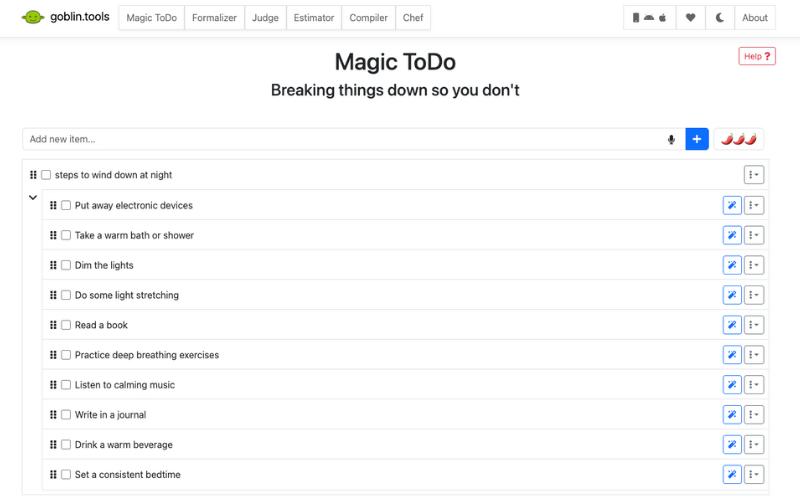
Goblin.tools also known as Magic To Do. I know I have mentioned this app on the podcast before because I got a message from somebody the other day saying, “I heard you recommend the Goblin app on your podcast. I told my partner about it and he loves it. He’s done loads of tasks in the last 2 days that he’s been struggling to do for ages. Thanks for recommending.”
First of all, I love this so much. It’s so fun to hear from you all.
This is both an app and a website.
The magic behind it is that it takes big projects and tasks and breaks them down into the small steps, which is something so many of our brains struggle to do. We’re so good at seeing the big picture, but it’s all those tiny steps that make us want to pull out our hair.
- You just type in the task that you want to do
- Click the little magic wand
- It breaks down the steps for you so it’s so much easier to get started.
Now, you might have to add in a little bit of detail here and there depending on how nuanced your specific topic is. But honestly, it is really good. I rarely have to add in much of anything.
So if you have not tried this app out yet, I highly recommend that you do.
At the time of this recording, it is free. You literally type in Goblin.Tools in your web browser. You can also search the App Store and type in Magic to Do Goblin tools. I always just use the web browser because – as I mentioned earlier – I just don’t use apps very often. But either way, give this a try. It’s a game-changer.
8. ‘Voice In’ Chrome Extension
This is something that I am using right now as I map out my podcast, and that is the Google Chrome extension called Voice In. I love this app. It is fantastic. As it sounds, there is a Google Chrome extension, and you can transcribe your speech to text in real-time.
As I am mapping out my podcast right now, and I am talking out loud, and Voice In literally transcribes it for me into Notion where I write down my podcast ideas.
I find for myself, I can speak much quicker than I can type, and I love being able to verbally process through my ideas and then go back and look at what I’ve written out and edit as needed.
So, if you are also a verbal processor, using something like Voice In or their other product called Dictanote can be super supportive.
9. One Sec
Oh my goodness, if you have not yet heard of One Sec and if you are a person who is easily distracted by their phone, you’re going to love this app.
One Sec – as in “one second” is an app that – as the name suggests – puts a little time in between you and the app you’re opening.
For example, I can set up One Sec so that anytime I open Instagram, there is a long pause where the screen essentially shifts colors to mimic taking a breath in and out. The color rises up and down, and once it’s finally done, it asks you are you sure you want to continue on with this app.
I find that when I breathe with the app, the amount of times that exit and don’t end up using the distracting app has gone up exponentially. It’s amazing how much time it’s saved me.
Using One Sec on my regular go-to apps like Gmail and Instagram has been so impactful because it stops me from habitually app cycling from opening my phone and going through the motions of checking email and then instagram when I don’t actually need to check anything.
The beauty of One Sec is that it has the built-in Pause. For all my clients, it literally gets you to practice the art of the pause that we talk about in week 2.
What’s even cooler is that you can extend the length of the pause.
For example, I think the regular time is 5-6 seconds, and I extended it to something like 10 or 11 seconds for Instagram. That long of a pause was so painfully slow that I would just X out and go about my day. And the constant repetition of this practice now has me completely forgetting to go on Instagram. It is now so out of the habit for me, that I forget it exists. It’s amazing.
So, if you find yourself going down the rabbit hole on apps or websites or anything on your phone, I highly encourage you to give One Sec a try. There are so many different ways you can personalize the setup to work for you.
I will say that it takes a little bit of setup.
It shows you step by step with a video, but there are a handful of steps you have to follow. It’s not automatic.
So when you sit down to set up the One Sec pauses – or the automations – the first time, just know that it might take a couple of minutes. So knowing that, I encourage you to make the most of your excitement around the novelty of One Sec when you first download it.
If you’re anything like me, the novelty can be just enough help you stick with it and figure out those couple of steps.
I’m telling you, it has been a game-changer. In fact, I set it up on my Amazon app around Christmas time because I noticed myself wanting to keep going and looking for new deals and Christmas presents when I’d already bought everything for people.
On January 18th I took a screenshot, when I opened the Amazon App, it said one attempt to open Amazon within the last 24 hours last use: 792 hours ago – I just did the math that is 33 days. Well Done One Sec!
10. Chat GPT
Finally we have tip number 10, which is, more broadly, ChatGPT.
As a side note, I’ve been thinking about doing an entire episode on how we can use ChatGPT to lighten the cognitive load for ADHD brains. If this is something that you might be interested in, will you let me know? Either send me a DM on Instagram or email me paula @ imbusybeingawesome.com. I’m curious if other people are interested in learning how to leverage AI and ChatGPT to help remove some friction for ADHD brains. If so, I can definitely put an episode together.
I love ChatGPT for helping my brain overcome blank page syndrome whenever I need to write something from scratch. So often our brain just needs a little direction. It needs a little nudge to get started. And ChatGPT can be such a powerful support in this space.
Examples
You are trying to get started on a new project, but you’re frozen.
You could literally ask a prompt like, “I’m staring at a blank document and I don’t know where to begin with my talking points for my meeting next week. The main message is XYZ. Can you suggest a structured approach to get started?” and then let ChatGPT give you that structure.
You’re frozen with email.
And you write something like “I have an important email to write, but I’m struggling to find the right words. Here is the email I’m responding to. [and you can paste that in if there is one] Essentially, I want to say that I won’t be able to make it. Can you please provide a starting point or template to work from?
Perhaps you write something.
Something like, “I want to make sure my email is clear and concise. Here’s essentially what I want to say. Write it out in an ugly version. It doesn’t need to be clear or anything. Then, can you please help me outline the key points I need to address?”
Maybe you want to do some creative writing.
But you’re feeling blocked. You could ask Chat, “I want to write a short story, but I’m struggling to come up with a starting point. Can you provide a writing prompt or idea to spark my creativity?”
Slides for a presentation.
“I need to create slides for a presentation, but I’m struggling to prioritize what content to include. Here are the notes for my presentation.” (copy and paste them in). “Can you help me prioritize what to highlight in the slides?”
When you can provide ChatGPT with the content you want to say and the general information – even when it’s not clear and the ideas feel muddy, the technology can help you to prioritize, clarify, spark ideas, and get the creative juices flowing.
We know it’s in there, but sometimes it’s hard to get those words out. Using these supports can be a really powerful way to do that.
Conclusion
That’s what I have for you today! My top ten pieces of tech that ares simplifying my ADHD life. From digitizing notes to shared lists to AI, we’ve covered a lot of ground.
The overarching theme for me lies in simplicity. I’ve found that these tools seamlessly integrate into my life, which makes them much stickier than that shiny new habit tracker or forgotten to-do list app.
As a quick recap my top ten include:
- Digitize your written notes with searchable headlines
- Using shared notes with your spouse or other people
- Smart home devices to help with short term memory and transitions
- Using an Apple watch or other smart watch to help your executive functions out
- Sleep tracking with AutoSleep and Rise Sleep
- Subscribing to your regular items around the home
- Goblin.tools or Magic To-Do to help you break tasks down
- Using a talk to text tool like Voice In or Dictanote
- One Sec for sidestepping distractions on your phone
- Chat GPT to help overcome the blank page syndrome
As always, a reminder that it’s not about finding the ONE perfect solution. It’s about finding what solutions work best for you and your brain.
If you have any favorites we didn’t explore here, I would LOVE to hear about them! Pop over to Instragram and send me a DM or share your favorite on the post for this episode. I am @imbusybeingawesome, and I can’t wait to hear from you.
Join Our Group Coaching Program – We’re Busy Being Awesome!
Add your name to the waitlist!
A four-month small, supportive group coaching program for adults with ADHD and ADHD tendencies.
To learn more check out We’re Busy Being Awesome. Are you ready?
Tech Tools Mentioned:
- Alexa (Smart Home Device)
- Smart Lights
- Apple Watch
- Auto Sleep
- Rise Sleep App
- Amazon Subscribe and Save
- Goblin.tools
- Voice In
- Dictanote
- One Sec
- ChatGPT
More Support for Your ADHD Brain:
- Learn more about We’re Busy Being Awesome here
- Learn about 1:1 coaching here
- Get the top 10 tips to work with your ADHD brain (free ebook!)
- Discover my favorite ADHD resources here
- Get the I’m Busy Being Awesome Planning System here
- Get the Podcast Roadmap here
- Get the ADHD Routine Revamp here


About Paula Engebretson
ADHD COACH | PODCASTER
I spent the first 31 years of my life thinking I just needed to “try harder” while dealing with crushing self-doubt, perfectionism, and imposter syndrome. Then I was diagnosed with ADHD.
Finally understanding the missing puzzle piece, I discovered how to work with my brain, build upon my strengths, and take back control of my life.
Now I help others with ADHD do the same. Learn more.